Transparency tests fail when the reviewer checks only a white background. Semi-transparent pixels can reveal dark halos, bright fringes, or color shifts when the same asset is placed over a different surface. Byte savings matter after those edge pixels survive.
Decide whether a transparent WebP can replace a PNG for a specific asset without damaging edge quality or reuse across backgrounds.
Repeatable method
1. Prepare three backgrounds
Use white, near-black, and a saturated color. Include a checkerboard only as a transparency indicator, not as the final inspection surface.
2. Select difficult assets
Test a soft shadow, antialiased icon, glass-like overlay, and illustration with partial alpha. Flat opaque logos rarely expose the hard cases.
3. Export at identical dimensions
Keep the pixel grid fixed. For lossy WebP, create a quality ladder; for lossless WebP, document the lossless mode.
4. Build a side-by-side fixture
Place PNG and WebP in identical containers with the same CSS. Toggle backgrounds without reloading so differences remain easy to spot.
PNG and WebP measured on four backgrounds
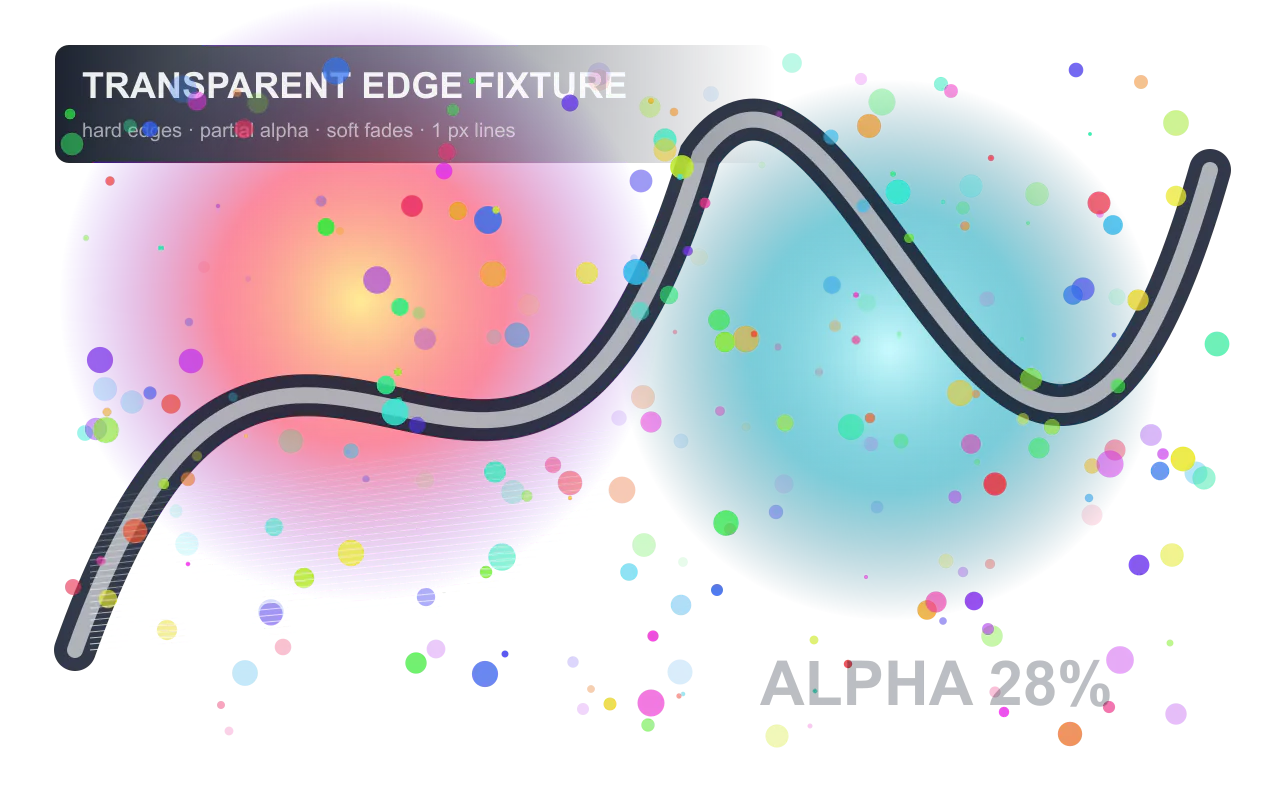
We generated an original 1280 × 800 RGBA fixture with hard edges, partial alpha,
overlapping translucent colors, soft fades, one-pixel lines, and semi-transparent text.
We encoded the same pixels as PNG, lossless WebP, and lossy WebP Q80 with alpha quality 100.
The deterministic SVG source, rendered PNG, outputs, measurements, and comparison page are downloadable.
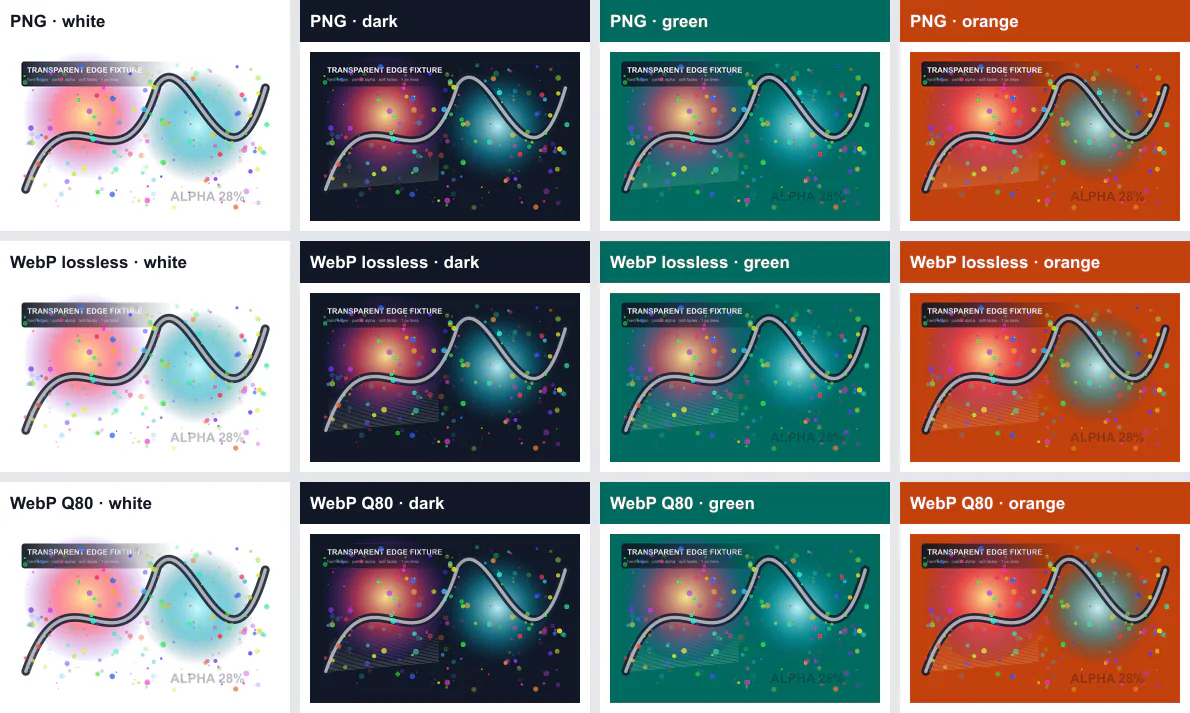
light, dark, and saturated surfaces can reveal different fringes, halos, or color contamination.
Use the full-size demo for edge inspection.
| Output | Settings | File size | Alpha-channel result | Composited RGB result | Inspection note |
|---|---|---|---|---|---|
| PNG | Compression 9, adaptive filtering | 584,668 bytes (571.0 KiB) | Exact against source | Exact on all four surfaces | Reference output for this run |
| WebP lossless | Lossless, effort 6 | 399,190 bytes (389.8 KiB) | Exact against source | Exact on all four surfaces | No decoded compositing difference measured on the tested surfaces |
| WebP Q80 | Quality 80, alpha quality 100, effort 6 | 182,466 bytes (178.2 KiB) | Exact against source | 40.2656–40.2836 dB PSNR | No gross halo is visible in the overview; inspect the full-size edges before acceptance |
What this run supports
Lossless WebP was 31.7% smaller than PNG in this fixture and produced the same measured composite pixels
on the four tested backgrounds. WebP Q80 was 68.8% smaller than PNG, preserved the alpha channel exactly
in this run, and produced composited RGB PSNR near 40.27 dB on every surface. That does not make Q80 a
universal transparency setting: the RGB color data is lossy, even when the alpha channel is exact.
“Exact” here means zero error in the stated decoded comparison; its numerical PSNR is infinite. It does not
prove identical behavior after a CMS transformation, browser resize, alternate decoder, animation, or different
page background. A high whole-image PSNR can also hide a small localized halo. Inspect the downloadable files
at their delivered size and on the real component surfaces before choosing an output.
Environment and measurement method
- Run date:
- Fixture seed: 20260812; original SVG source; 1280 × 800 RGBA
- Node.js v24.14.0; Sharp 0.34.5; libvips 8.17.3
- libpng 1.6.50; WebP 1.6.0
- Background RGB triplets: white (255,255,255), dark (17,24,39), green (0,107,95), orange (194,65,12)
- Method: decode to RGBA, compare alpha directly, composite over each fixed background, then calculate RGB PSNR against the source composite
- Full settings, SHA-256 hashes, and unrounded results are in the JSON and CSV records.
Download the rendered RGBA source ·
Download measurements and hashes (CSV) ·
Download all source files, outputs, data, and demo (ZIP) ·
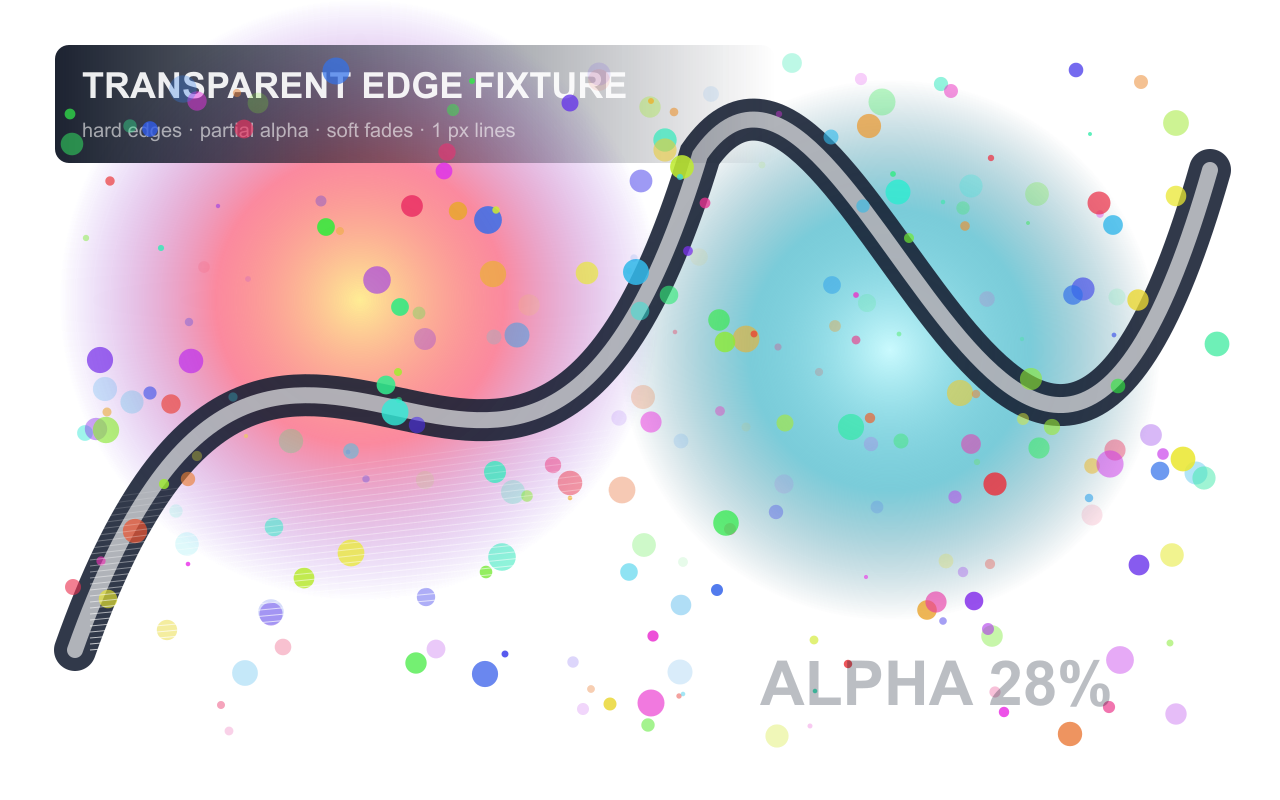
Full-size outputs:
PNG ·
WebP lossless ·
WebP Q80
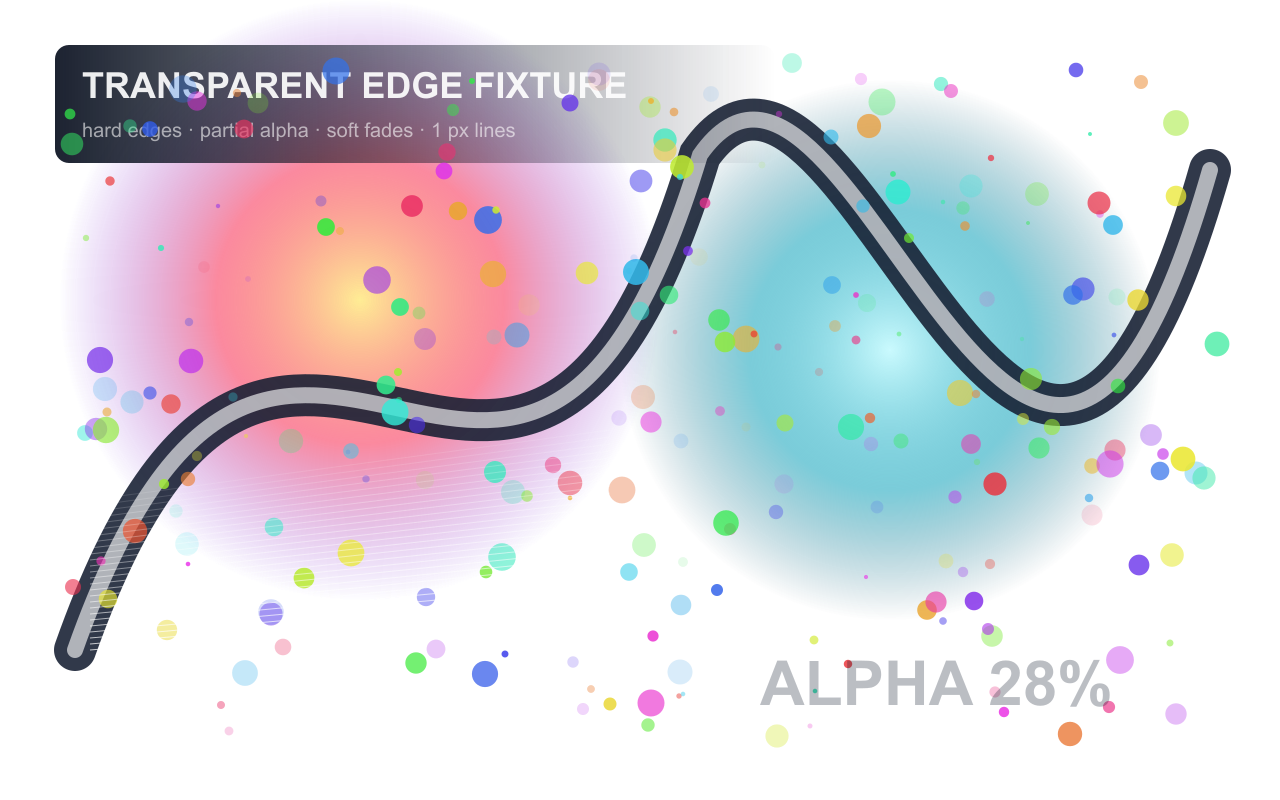
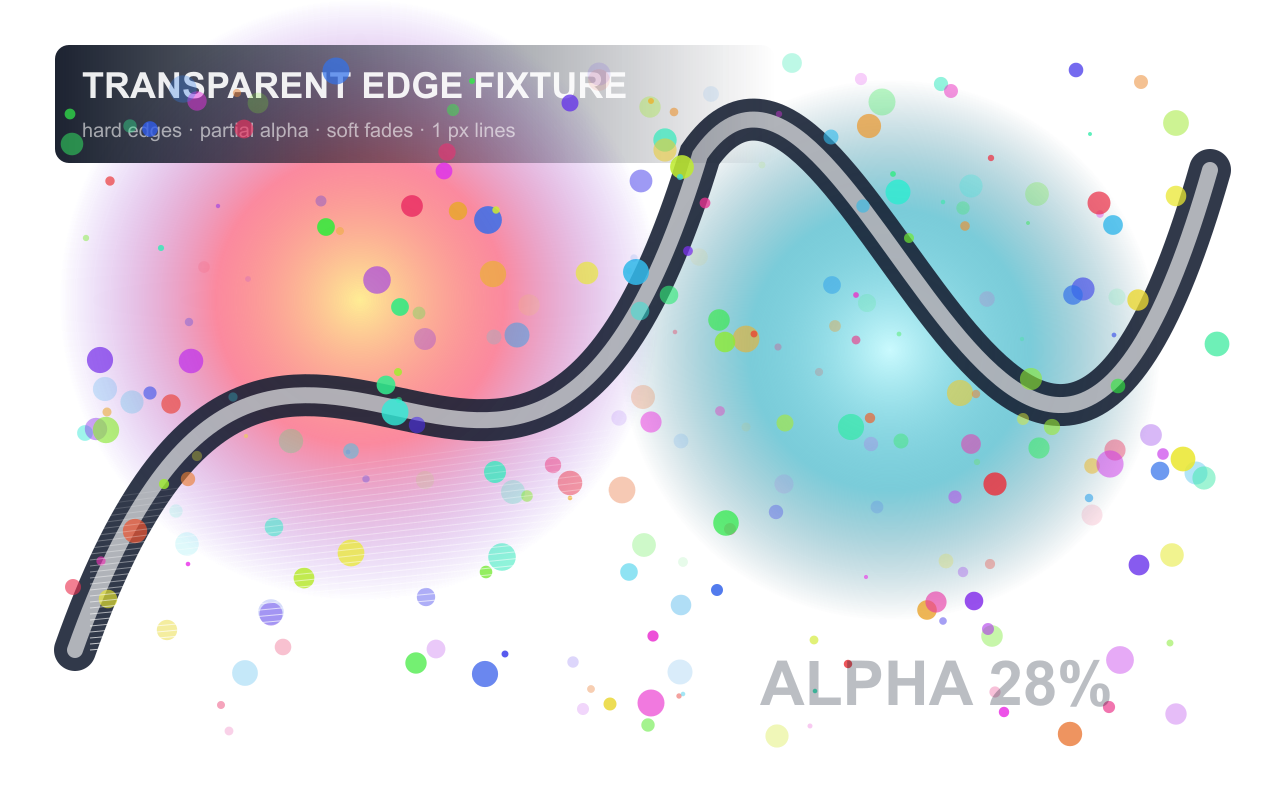
Limitations: this synthetic fixture does not cover photographic cut-outs, palette-indexed PNG,
animated WebP, color profiles, alternate resize filters, every browser compositor, every output setting, or every
real page background. PSNR is a numerical proxy and can miss perceptually important localized defects.
What to record
Record whether each file is lossless or lossy, its dimensions and bytes, the encoder, the background colors used, and any halo or fringe visible at 100% zoom. Keep a screenshot of the fixture, not just the files.
A result belongs to the source file, encoder, settings, browser, viewport, cache state, and date that produced it. Repeat the test on representative files before changing a production workflow.
Common mistakes
- Checking transparency over one background
- Comparing lossless PNG with unexplained lossy settings
- Mistaking a checkerboard preview for real page context
- Converting icons that would be clearer as SVG
Verification checklist
Inspect at 100% and 200% zoom, test a high-DPI screen if available, and verify the chosen file in the actual component. Confirm that alt text and intrinsic dimensions remain in the final img element.
Primary references
Related lab notes
About this guide
We distinguish documented platform behavior from our workflow recommendations. See the testing methodology, editorial policy, and corrections log.