Private Browser Image Optimizer
Resize and compress a JPEG, PNG or WebP in your browser without uploading it, with a worked example and the encoder's measured limits.
Resize and compress one image
Your file is decoded by this browser and is not uploaded to Image Load Lab. Browser encoders vary, so record the browser and version when comparing results.
How to use it
- Choose a file. JPEG, PNG or WebP. The file is read by your browser and never leaves your device.
- Set the maximum width. Use the widest size the image will actually be shown at, times two for high-density screens. For an article column 760 pixels wide, that means about 1,520 pixels; our high-DPI test explains the trade-off.
- Pick the format and quality. WebP is usually the better choice for photos and screenshots. Start around 75–80 and lower it while the result still looks right.
- Process and compare. The tool shows the original size, the new size and the difference. Look at the preview at 100 % zoom, especially in gradients, text and fine textures.
- Download the result and keep your original.
A worked example with a real photo
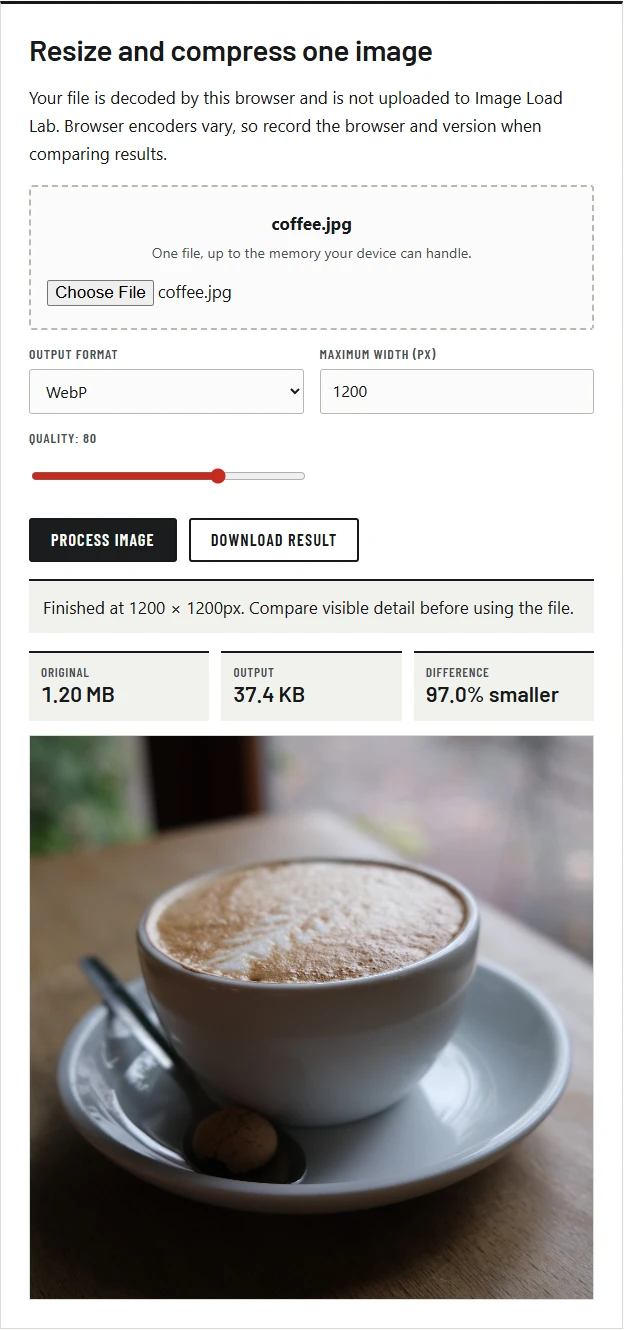
We opened a 4160 × 4160 CC0 photograph of a cup of coffee (1,258,883 bytes, from Wikimedia Commons) in this tool in Chrome, set the maximum width to 1,200 pixels and exported it three times:
| Output | Bytes | Smaller than original |
|---|---|---|
| JPEG, quality 80 | 82,862 | 93.4 % |
| WebP, quality 80 | 38,334 | 97.0 % |
| WebP, quality 60 | 26,724 | 97.9 % |
Two lessons from this example. First, most of the saving came from the resize: the original had more than twelve times the pixels of the 1,200-pixel export. Second, at the same nominal quality of 80, WebP was less than half the size of JPEG for this image, which has a large, soft out-of-focus background. Our measurements on 20 photos show the WebP advantage varies a lot from photo to photo, so check yours rather than assuming this ratio.
What happens inside the tool
The tool decodes your file, draws it onto a canvas at the chosen width with the browser’s built-in scaler, and asks the browser to encode it with canvas.toBlob(). That is the same encoder whose JPEG output we measured in our canvas encoder test: at the same visual quality, Chrome’s JPEGs were a median 18.4 % larger than MozJPEG’s. A server-side encoder will usually give smaller files; this tool trades that for privacy and convenience.
What this tool does not prove
- A smaller file is not automatically acceptable. Inspect the result at the size it will be shown.
- Browsers encode differently. Firefox, Safari and Chrome can produce different files from the same settings.
- AVIF output is not offered: when we asked Chrome 155 to encode AVIF from a canvas, it returned a PNG instead.
- Colour profiles and metadata are not carried over. The output is sRGB with no EXIF data, which also removes any location data in the original (see our EXIF test).
Privacy
We recorded every network request this page makes while processing an image: none of them sends the image or its contents anywhere. The page loads the same site scripts as every other page, including analytics and advertising code described in our privacy policy, but your file is processed locally.