WebP alphaQuality: How Low Can Transparency Go?
Lowering alphaQuality from 100 to 80 saved 5 to 15 % with near-exact transparency. At 50 soft shadows degraded, and for logos lossless WebP was smaller and perfect.
A lossy WebP with transparency stores two things: the colour, compressed with the usual quality setting, and the alpha channel, which has a setting of its own. In libwebp it is called alpha_q; in sharp and many plugins, alphaQuality. Its default is 100, which keeps the transparency lossless. How many bytes does lowering it save, and when does the transparency start to look wrong? We tested three transparent images at six settings.
The test
The images were the three transparent test files from our PNG vs WebP transparency test: an anti-aliased logo, a semi-transparent “glass” panel with overlapping circles, and a badge with a soft drop shadow. With sharp 0.35.5 at effort 6, we saved each as lossless WebP and as lossy WebP with colour quality 80 and alphaQuality 100, 90, 80, 50, 20 and 0.
We measured three things. The first was file size. The second was the alpha error: how far each decoded alpha value was from the original, on a scale of 0 to 255. The third was overall quality: we placed the source and each WebP over the same grey checkerboard and scored the results with SSIMULACRA2, so that transparency errors show up as visible differences. See our methodology.
Results
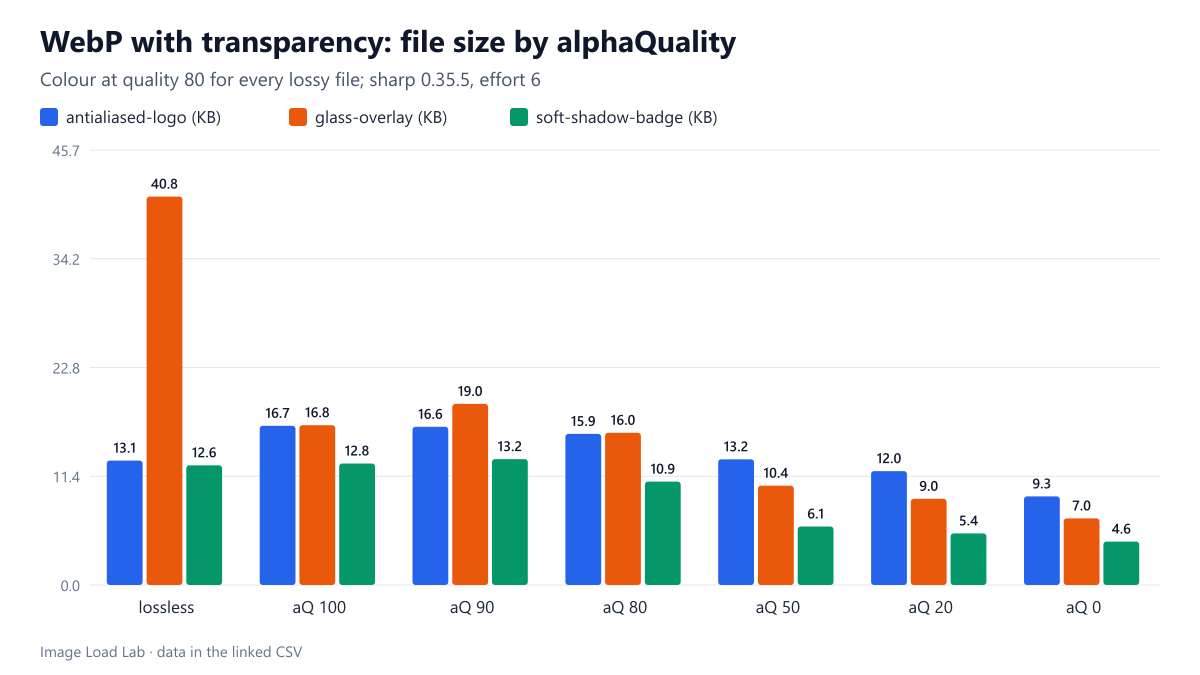
| Image | Variant | WebP size | PNG size | Alpha error: mean / max (0–255) | SSIMULACRA2 on a checkerboard |
|---|---|---|---|---|---|
| antialiased-logo | lossless | 13.1 KB | 27.3 KB | 0.00 / 0 | 100.0 |
| antialiased-logo | q80, alphaQuality 100 | 16.7 KB | 27.3 KB | 0.00 / 0 | 86.0 |
| antialiased-logo | q80, alphaQuality 90 | 16.6 KB | 27.3 KB | 0.00 / 1 | 86.0 |
| antialiased-logo | q80, alphaQuality 80 | 15.9 KB | 27.3 KB | 0.01 / 2 | 86.0 |
| antialiased-logo | q80, alphaQuality 50 | 13.2 KB | 27.3 KB | 0.07 / 13 | 85.9 |
| antialiased-logo | q80, alphaQuality 20 | 12.0 KB | 27.3 KB | 0.14 / 29 | 85.6 |
| antialiased-logo | q80, alphaQuality 0 | 9.3 KB | 27.3 KB | 0.64 / 127 | 80.5 |
| glass-overlay | lossless | 40.8 KB | 61.1 KB | 0.00 / 0 | 100.0 |
| glass-overlay | q80, alphaQuality 100 | 16.8 KB | 61.1 KB | 0.00 / 0 | 88.4 |
| glass-overlay | q80, alphaQuality 90 | 19.0 KB | 61.1 KB | 0.14 / 1 | 88.3 |
| glass-overlay | q80, alphaQuality 80 | 16.0 KB | 61.1 KB | 0.34 / 1 | 88.1 |
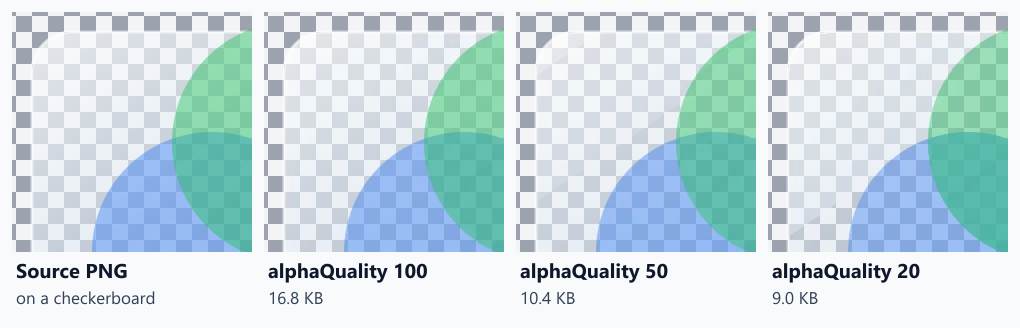
| glass-overlay | q80, alphaQuality 50 | 10.4 KB | 61.1 KB | 2.72 / 16 | 81.2 |
| glass-overlay | q80, alphaQuality 20 | 9.0 KB | 61.1 KB | 5.95 / 34 | 57.1 |
| glass-overlay | q80, alphaQuality 0 | 7.0 KB | 61.1 KB | 41.80 / 117 | -56.8 |
| soft-shadow-badge | lossless | 12.6 KB | 29.6 KB | 0.00 / 0 | 100.0 |
| soft-shadow-badge | q80, alphaQuality 100 | 12.8 KB | 29.6 KB | 0.00 / 0 | 84.4 |
| soft-shadow-badge | q80, alphaQuality 90 | 13.2 KB | 29.6 KB | 0.04 / 1 | 84.4 |
| soft-shadow-badge | q80, alphaQuality 80 | 10.9 KB | 29.6 KB | 0.09 / 2 | 84.4 |
| soft-shadow-badge | q80, alphaQuality 50 | 6.1 KB | 29.6 KB | 0.72 / 17 | 76.0 |
| soft-shadow-badge | q80, alphaQuality 20 | 5.4 KB | 29.6 KB | 1.52 / 27 | 53.8 |
| soft-shadow-badge | q80, alphaQuality 0 | 4.6 KB | 29.6 KB | 8.99 / 127 | -37.5 |
From 100 down to 80, the transparency stayed practically exact. The largest alpha error at 80 was 2 out of 255, and the quality scores did not change. The saving was small, 5 to 15 %. One surprise: at 90, the glass panel came out larger than at 100 (19.0 KB against 16.8 KB). Lossy alpha compression is not always smaller than lossless alpha compression.
At 50, savings became large and so did errors. Files were 21 to 52 % smaller than at 100, but alpha values were off by up to 17. For the logo, whose transparency is mostly fully on or off, quality barely moved (85.9 against 86.0). For the glass panel and the soft shadow, the scores fell from 88.4 to 81.2 and from 84.4 to 76.0.
At 20 and 0, the transparency broke. At 0, every image lost its partial transparency, with errors up to 127, and the glass panel and shadow scored below zero.
Lossless WebP was sometimes the smallest
For the logo and the badge, lossless WebP was smaller than lossy WebP with the default alphaQuality of 100: 13.1 KB against 16.7 KB for the logo, and 12.6 KB against 12.8 KB for the badge. It was also perfect. Only the glass panel, with its soft gradients and large semi-transparent areas, was much larger as lossless: 40.8 KB against 16.8 KB. All three WebP versions were smaller than the original PNGs (27.3, 61.1 and 29.6 KB).
What to do
- Try lossless WebP first for logos, icons and badges. For graphics with flat colour and sharp edges, it was about as small as lossy WebP, or smaller, and exact.
- For lossy WebP, keep
alphaQualityat 80 or more. In our test that cost almost nothing and the transparency stayed accurate to within 2 levels. - Do not go below 50 for soft shadows or glass effects. Partial transparency is where the errors show, as halos or patchy shadows on coloured backgrounds.
- Check plugin defaults. Some image plugins expose only one quality setting and may apply it to the alpha channel as well. Look for a separate alpha setting, or test a transparent image over a coloured background after conversion.
Command-line equivalents
# libwebp: colour quality 80, lossless alpha (default)
cwebp -q 80 -alpha_q 100 logo.png -o logo.webp

# lossless WebP
cwebp -lossless -z 9 logo.png -o logo.webp

# sharp (Node.js)
await sharp('logo.png').webp({ quality: 80, alphaQuality: 80 }).toFile('logo.webp');
Practical conclusion
Lowering alphaQuality from 100 to 80 saved 5 to 15 % with transparency accurate to within 2 levels. Going to 50 saved up to half the file but visibly damaged soft shadows and semi-transparent areas, and 20 or less broke them. For logos and badges, lossless WebP was both smaller and exact. Keep the alpha setting at 80 or above, and try lossless for flat graphics.
Limitations
Three test images, one colour quality, one encoder (sharp with libwebp 1.6.0), and quality judged over one checkerboard background. Other backgrounds can make alpha errors more or less visible.
Data and files
Download webp-alpha-quality.csv (21 rows, 1.6 KB) · Method: testing methodology.