PNG, oxipng or Lossless WebP for Screenshots? 8 Captures Measured
Lossless WebP made our screenshots 59 % smaller than Chrome's PNGs with identical pixels. oxipng saved 45 %; its slow zopfli mode added only 1.4 %.
Screenshots are the images technical sites publish most, and they are usually saved as whatever PNG the capture tool produced. How much smaller can a screenshot get without losing a single pixel, and which tool is worth the time? We captured eight real screenshots of this website with Chrome and put each one through five lossless encoders, plus two lossy options for comparison.
The screenshots and encoders
The test set is four pages of this site (home, a guide, the srcset tool and the methodology page), each captured by Chrome 153 at 1280 × 800 CSS pixels at 1× and at 2× density (2560 × 1600 pixels). The site’s dark theme, with a faint grid pattern, soft gradients and anti-aliased text, is a demanding case for lossless compression. For each capture we measured:
- Chrome’s PNG as saved by the browser (the starting point);
- libpng level 9 with adaptive filtering (sharp 0.35.5);
- oxipng 10.2.1 at
-o 4, and at-o max --zopfli, its slowest setting; - WebP lossless with cwebp 1.6.0 at its highest effort (
-lossless -z 9); - AVIF lossless through sharp (libaom 3.15.1, effort 4);
- for comparison, WebP near-lossless 60 and lossy WebP quality 90.
Every lossless output was decoded and checked against the source. Encode times are medians of three runs on our bench (see the methodology); the zopfli setting was timed once because a single run took minutes.
Results
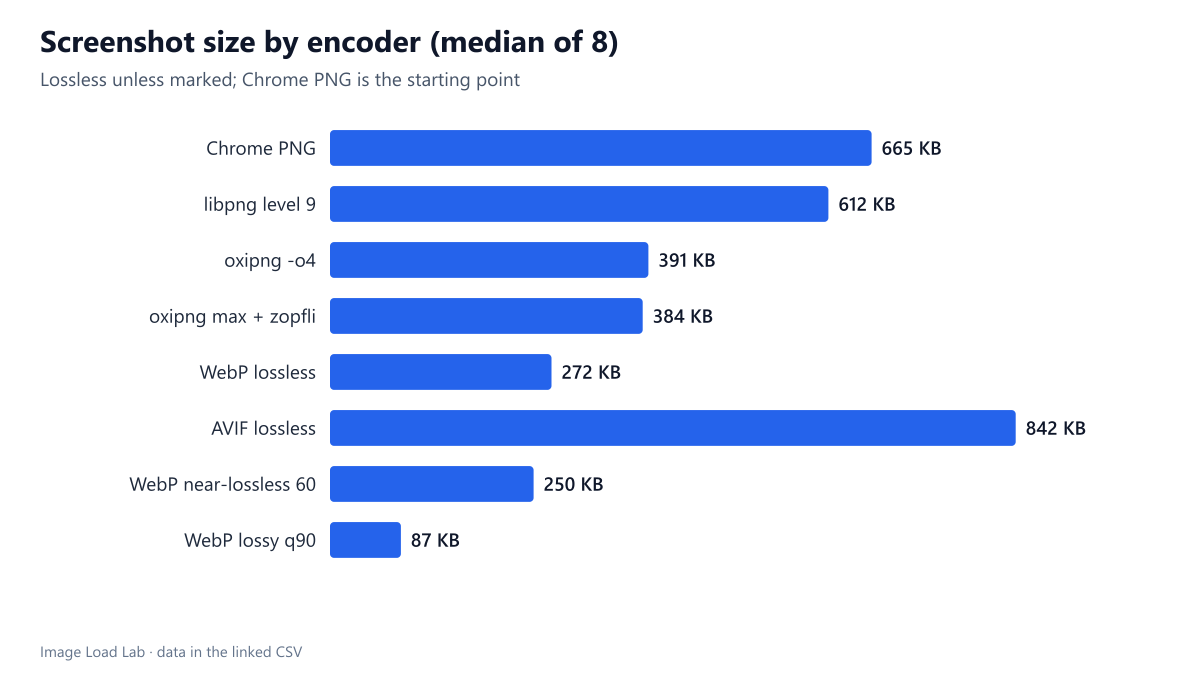
| Encoder | Median size (KB) | vs Chrome PNG | Median time (s) | Median SSIMULACRA2 |
|---|---|---|---|---|
| Chrome PNG | 665 | +0.0 % | 0.00 | 100.0 |
| libpng level 9 | 612 | -10.1 % | 0.90 | 100.0 |
| oxipng -o4 | 391 | -45.0 % | 3.39 | 100.0 |
| oxipng max + zopfli | 384 | -45.5 % | 108.56 | 100.0 |
| WebP lossless | 272 | -59.4 % | 5.63 | 100.0 |
| AVIF lossless | 842 | +29.5 % | 1.60 | 100.0 |
| WebP near-lossless 60 | 250 | -62.8 % | 5.64 | 92.2 |
| WebP lossy q90 | 87 | -86.5 % | 0.24 | 75.8 |
Compared with the PNG Chrome saved, the median savings were:
- libpng level 9: −10.1 % (0.9 s per image);
- oxipng
-o 4: −45.0 % (3.4 s); - oxipng
-o max --zopfli: −45.5 % (109 s); - WebP lossless: −59.4 % (5.6 s);
- AVIF lossless: +29.5 %, larger than the original PNG for all eight screenshots.
Across all eight files, Chrome’s PNGs totalled 5,632,316 bytes; the lossless WebP versions totalled 2,352,552 bytes, with identical pixels.
Three things we did not expect
zopfli was almost pointless here. The slowest oxipng mode took 30 to 40 times longer than -o 4 (a median of 109 seconds per screenshot, three minutes for the 2× captures) and saved only 1.4 % more. For a build pipeline, -o 4 is the sensible setting.
Lossless WebP beat the best PNG by a quarter. Even against oxipng’s output, WebP lossless was a median 24.4 % smaller, between 16.9 % and 36.1 % depending on the page. PNG’s compression cannot exploit the repeated patterns and colour correlations that WebP’s lossless mode was designed for.
Lossless AVIF was a poor choice. AVIF is excellent in lossy mode (see our format comparison), but its lossless mode produced files 20–54 % larger than Chrome’s unoptimised PNG. Do not assume a format’s lossy reputation carries over to lossless.
Is lossless even necessary?
Two lossy options were measured for comparison. WebP near-lossless 60 (cwebp -near_lossless 60) made the files 62.8 % smaller than Chrome’s PNGs, only slightly better than true lossless WebP (59.4 %), with a median SSIMULACRA2 score of 92.2 and a lowest score of 91.5: visually indistinguishable in our checks. Lossy WebP at quality 90 made them 86.5 % smaller, but the median score dropped to 75.8 and the worst screenshot scored 69.0.
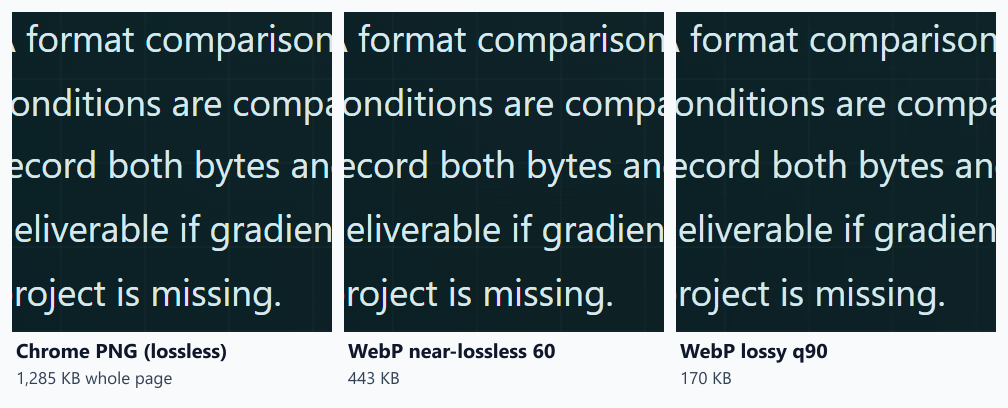
In the 3× enlargements, near-lossless is hard to tell from the PNG, while lossy quality 90 slightly softens the coloured fringes around anti-aliased letters. For screenshots that people read closely (code, settings screens, small labels), stay lossless or near-lossless. For large decorative screenshots where small text does not matter, lossy WebP saves a lot more.
Practical conclusion
- Save screenshots for the web as lossless WebP: 59 % smaller than the capture tool’s PNG in our set, and supported by all current browsers.
- If a PNG is required (documentation systems, some email clients), run oxipng -o 4: it roughly halves the file in a few seconds. Skip the zopfli mode.
- Do not use lossless AVIF for screenshots.
- Also resize: in our set a 2× capture was 2.6 to 3.5 times the bytes of the 1× capture of the same page (as lossless WebP). Publish 2× only where the detail is needed, and serve it through
srcsetso 1× screens get the smaller file.
How this connects to our other tests
Screenshots behaved differently from photographs throughout the lab. In the format comparison, lossy WebP and AVIF beat JPEG by much more on screenshots than on photos; in the WebP quality test, lossy WebP could not reach a SSIMULACRA2 score of 80 on any screenshot even at quality 95. This test explains the alternative: lossless WebP keeps every pixel and is still far smaller than PNG. For transparent interface graphics the same conclusion held in our transparency test.
One practical rule follows from all of these tests: decide the format by what the image contains, not by habit. Photographs went best to AVIF or a well-tuned JPEG; screenshots and interface graphics to lossless WebP.
Repeat this test on your own images
To convert your own screenshots, the two commands we recommend are:
cwebp -lossless -z 9 screenshot.png -o screenshot.webp
oxipng -o 4 --strip safe screenshot.png
Use the first for the web and the second where PNG is required. Both are free and run on Windows, macOS and Linux. Our script run_lossless_effort.mjs runs all eight encoders on the eight captures and records the timings.
Limitations
Eight screenshots of one website with a dark design. Light interfaces with large flat areas compress better in every format, which would shrink the absolute numbers but probably not the ranking. Encode times depend on CPU and threading; cwebp and oxipng used their default threading on a 16-thread desktop.
Data and files
Download lossless.csv (64 rows, 3.7 KB) · Method: testing methodology.